Over 1.5 million travellers turned to MyRoami last year
Independently testing eSIMs since 2021
Featured in Business Insider, Tech Times & Luxury Travel Magazine
Mobile Internet
iPhone Charging Port Not Working
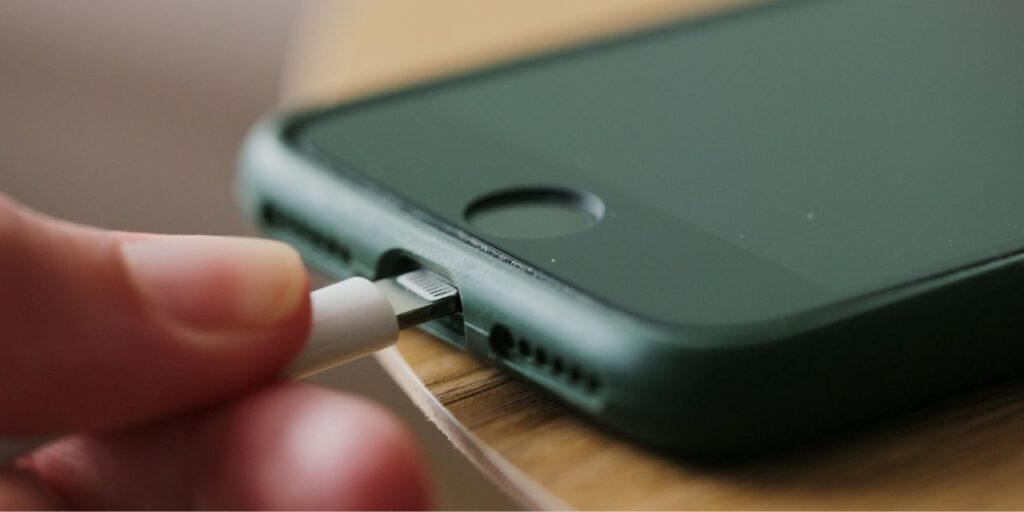
When your iPhone charging port stops working, it can bring your day to a halt. Whether it’s lint blocking the connection, a software glitch, or hardware damage, understanding the cause is key to getting your device powered up again. This guide walks you through the most common reasons, troubleshooting tips, and fixes to restore reliable charging — all before you head to the repair shop.
We test eSIMs in real travel conditions - across cities, countries, and everyday situations where
connection actually matters. That includes navigation, messaging, browsing, and remote work on the
move.
We buy eSIMs ourselves.
We test them during real trips.
We compare providers under the same conditions.
We don’t simulate usage or rely on provider data. We document both performance and failure.
Updated: Jun 23, 2025
Share
Is your iPhone charging port not working? Or are you facing a different issue? While your first instinct might be to check the cable, there are several different potential reasons why your iPhone isn’t charging.
This guide breaks down the most common causes, how to pinpoint the problem, and what you can do to fix it at home before heading to a repair shop.
Why Your iPhone Charging Port Might Not Be Working
Several things can interfere with how your iPhone connects to a charger. Here are the most common reasons the charging port might stop working:
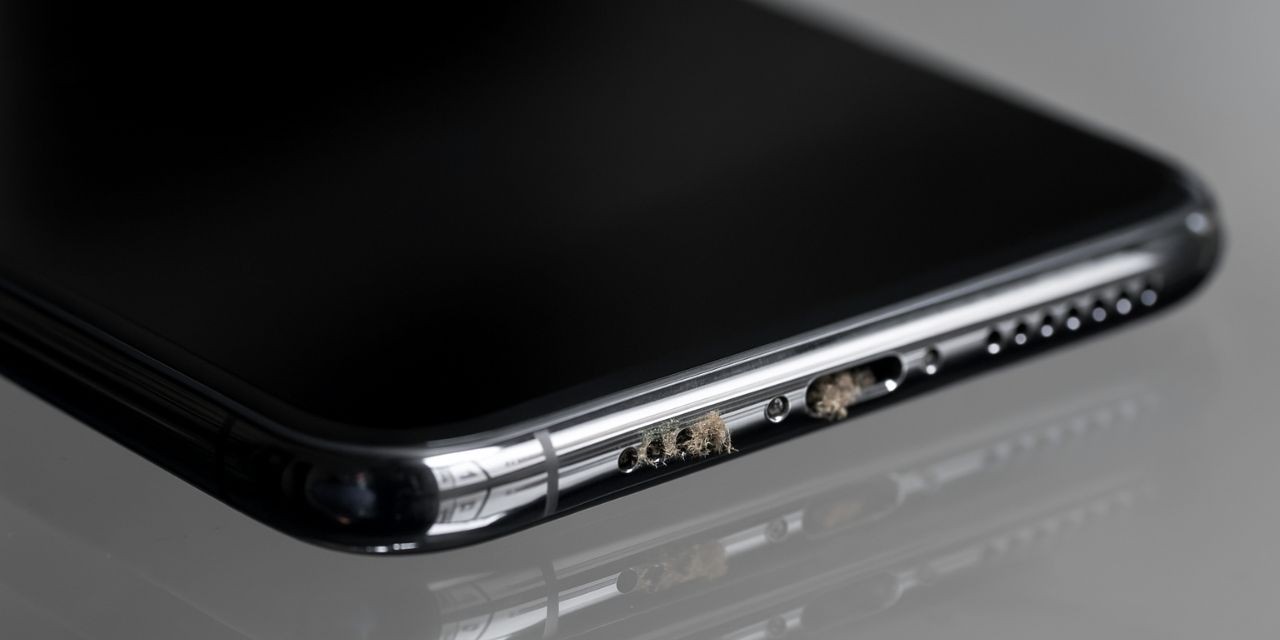
Lint or dust buildup: Debris can block the metal contacts in the port, stopping the cable from making a proper connection.
Loose or broken cables: Worn-out Lightning cables or frayed wires often mimic port issues.
Faulty adapters: A broken or low-quality power brick can also cause charging problems.
Water damage: Even minor moisture exposure can corrode the charging port or surrounding components.
Software glitches: A system crash or bug may stop your phone from recognizing that it’s connected to a charger.
Hardware failure: In some cases, the port itself is damaged internally and requires professional repair or replacement.
Overheating: iPhones can disable charging temporarily if the device gets too hot, such as after gaming, charging in a hot car, or heavy app use.
Battery health issues: A degraded battery may charge slowly, intermittently, or not at all, making it seem like the port is the issue.
Third-party accessories: Non-MFi-certified cables or adapters may not be fully compatible with iPhones, leading to unreliable or failed charging attempts.
How to Check if the Problem Is Really the Charging Port
Before assuming the port is broken, try these troubleshooting steps to eliminate other possible causes:
Use a different Lightning cable: The cable may be frayed, damaged, or just worn out.
Swap out the adapter: Try a different wall charger or USB brick.
Test wireless charging (if available): If your iPhone 8 or newer charges wirelessly, the port might be the issue.
Plug into a different power source: Try charging via a wall outlet, USB port on a computer, or even a power bank.
Inspect the Lightning port with a flashlight: Check for any visible lint, corrosion, or bent pins inside the port.
Look for charging indicators: If the phone vibrates or shows a charging icon briefly before disconnecting, it suggests the port is registering but failing to maintain contact.
Check battery health: Go to Settings > Battery > Battery Health & Charging to see if iOS flags any charging or battery performance issues.
Try charging while the phone is off: Power off the device and plug it in. If it still doesn’t charge, the issue is likely hardware-related.
If none of these steps work, and especially if you see visible damage or intermittent charging behavior, the charging port itself is most likely the culprit.
5 Fixes for an iPhone Charging Port That Isn’t Working
If you’ve already confirmed the problem isn’t with your cable, adapter, or outlet, try these at-home fixes:
Clean the Charging Port (Safely)
Dust, pocket lint, or sand can block your charger from making contact.
Use a soft, dry brush (like a clean toothbrush or anti-static brush) to gently loosen any visible debris.
You can also try gently tapping the phone with the port facing down to dislodge any loose particles.
Important: Avoid using toothpicks, tweezers, metal pins, water, or compressed air—these can damage internal components or push debris further in.
Restart Your iPhone
Sometimes, a simple restart is enough to clear out a temporary glitch that’s stopping the phone from recognizing a charger.
iPhone 8 or later: Quickly press and release Volume Up, then Volume Down. Hold the Side button until the Apple logo appears.
iPhone 7: Hold the Volume Down and Sleep/Wake (Side) button together until you see the Apple logo.
iPhone 6s and earlier: Hold the Home and Sleep/Wake buttons together until the Apple logo appears.
Check for iOS Update
iOS updates often include bug fixes, including those related to charging problems.
If a configuration problem is causing your charging issue, resetting all settings can help.
Go to Settings > General > Transfer or Reset iPhone > Reset > Reset All Settings
This resets Wi-Fi, Bluetooth, and other preferences—but does not delete your personal data or apps.
Use this as a last resort before visiting a technician.
Try Wireless Charging (If Supported)
If you have an iPhone 8 or newer, you can test wireless charging:
Place the phone on a Qi-certified wireless charger
If it charges this way but not through the Lightning port, your port is likely the issue
Wireless charging can also serve as a temporary workaround until you get the port repaired.
When to Get Professional Help
If you’ve tried all the above and your iPhone still won’t charge, it may be time to get it checked professionally. Look for these warning signs:
The charging port moves, wiggles, or feels loose
You’ve cleaned the port and tried other cables with no luck
Your phone has recently been exposed to moisture or dropped in liquid
You see a "Liquid detected in Lightning Connector" warning (iOS 14 and later)
Where to go:
Apple Support: Schedule an appointment or mail-in repair
Authorized service providers: Safer than third-party repair shops for keeping your warranty intact
AppleCare+: If you're covered, port repairs may be free or discounted
Preventing Future Charging Port Issues
To avoid charging problems down the line, consider these care tips:
Keep the port clean: Avoid storing your phone in pockets with lint, sand, or debris.
Use Apple-certified cables and accessories: Third-party gear can wear out your port faster.
Don’t force the connector: Plugging in at an angle or yanking the cable can damage port contacts.
Avoid dusty environments when charging: Charging at the beach, in bags with crumbs, or in dirty cars invites debris into the port.
iPhone Charging Port Not Working: FAQs
How do you fix an unresponsive iPhone charging port?
Start by cleaning the port gently with a soft, dry brush to remove any lint or debris. If that doesn’t help, try restarting the device, using different cables, or updating iOS before seeking professional repair.
Can you repair the charging port on an iPhone?
Yes, a damaged iPhone charging port can be repaired or replaced, typically by Apple or an authorized service provider. If the device is under warranty or AppleCare+, the repair may be covered at reduced or no cost.
How do I know if my iPhone charging port is damaged?
Signs include the cable not fitting securely, intermittent charging, or no response even after trying different cables and adapters. A visual inspection may also reveal corrosion, bent pins, or debris lodged inside.
How to clean iPhone charging port?
Power off the phone and gently clean the port using a soft-bristled brush or anti-static tool. Avoid using toothpicks, metal objects, or liquids, which can damage internal components.
How to fix iPhone charging port loose?
If the port feels loose, try cleaning it first—built-up lint can prevent a snug connection. If it still wiggles or doesn’t grip the cable, the internal connector may be damaged and likely needs professional repair.
Vukasin PetrovicContent SEO specialist
Vukasin has a master’s degree in Creative Writing, which he received at St. Francis College in Brooklyn. When he's not reading or playing video games, he's traveling and making the most of the remote work lifestyle. As an editor and writer in the travel and connectivity industries, he focuses on making eSIMs and mobile internet feel straightforward, translating technical details into clear, practical guidance for travelers and remote workers.
Our mission is simple: to make sure you never have to ask, “What’s the WiFi password?” again. All our tips come straight from personal experience — because we’d never recommend something we haven’t put to the test ourselves.